How to download and use custom models
This guide provides a comprehensive overview of installing models in ComfyUI VM solution provided by Techlatest.net.
- Once your ‘Comfy UI: Stable Diffusion AI Image Generation Made Simple’ VM is up and running , you can connect to VM via SSH to download and use new models/checkpoints.
Note: By default this vm comes with SDXL Base 1.0 checkpoint model.
-
To connect to the SSH terminal, please follow our Getting Started Guide of respective cloud provider.
-
Once connected to SSH terminal, navigate to checkpoints directory using-
cd /home/ubuntu/setup/ComfyUI/models/checkpoints

- There are several channels available to download the Stable Diffusion model, such as Hugging Face. Search for the download URL of your desired checkpoint model.
-
For example, in this guide, we will download the Stable Cascade model for ComfyUI from Hugging Face using wget.
-
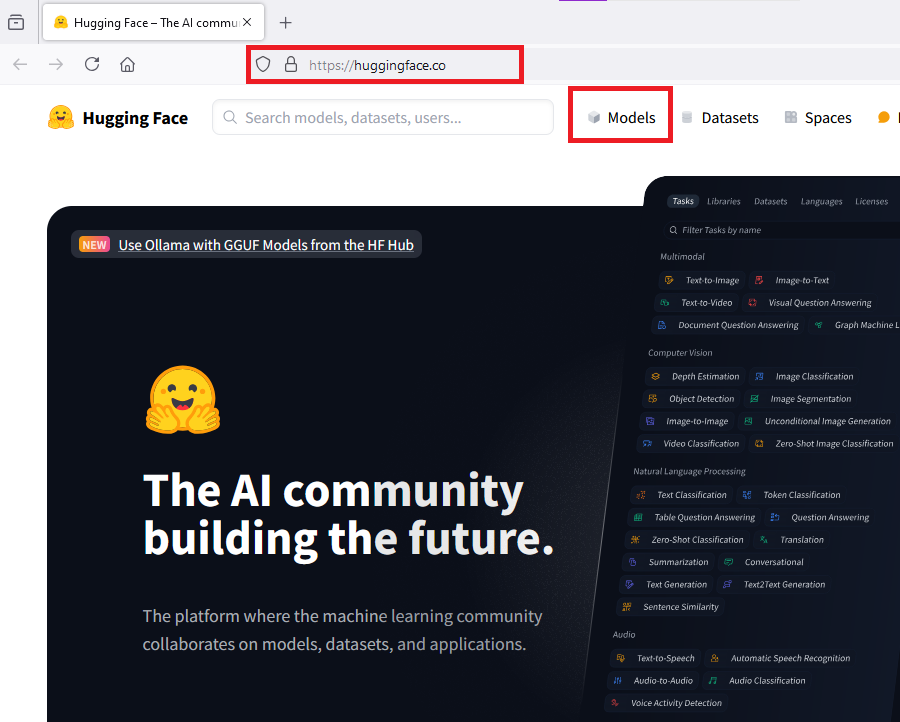
To do so, go to Hugging Face website. Open Models page.
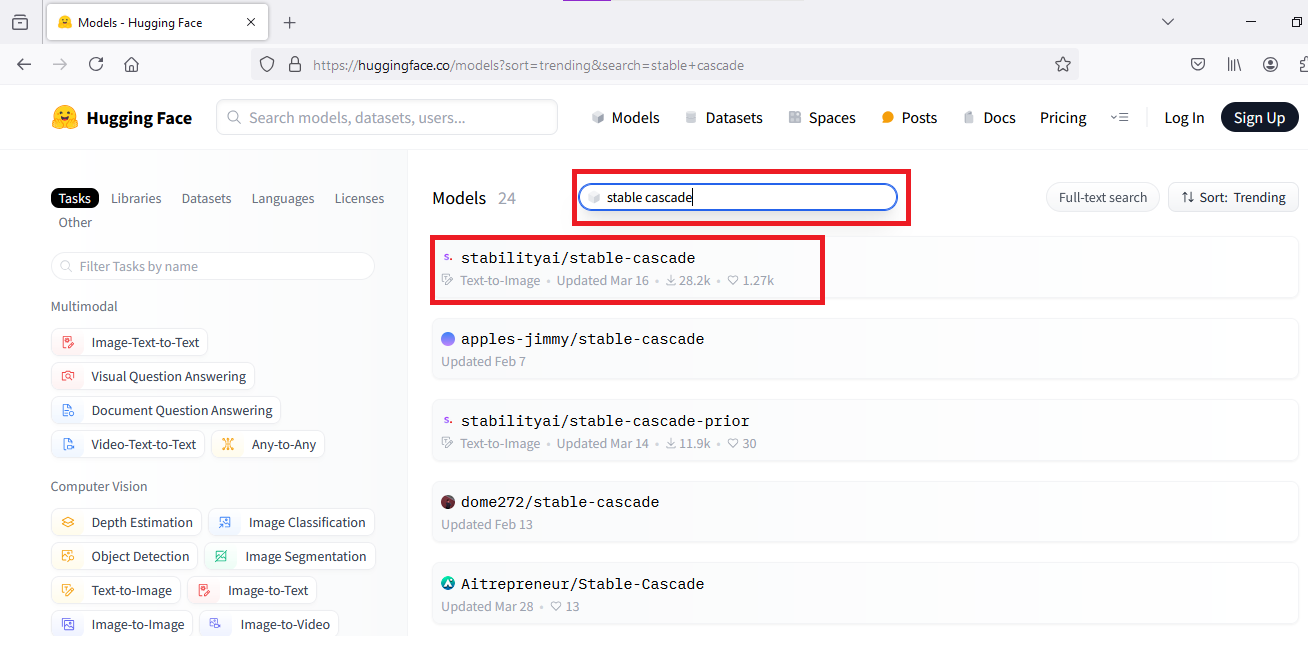
- On Models page, search for your required model in the top search bar. You can also apply different filters to search around. Here we will search with stable cascade and select the first option stabilityai/stable-cascade from the search results.
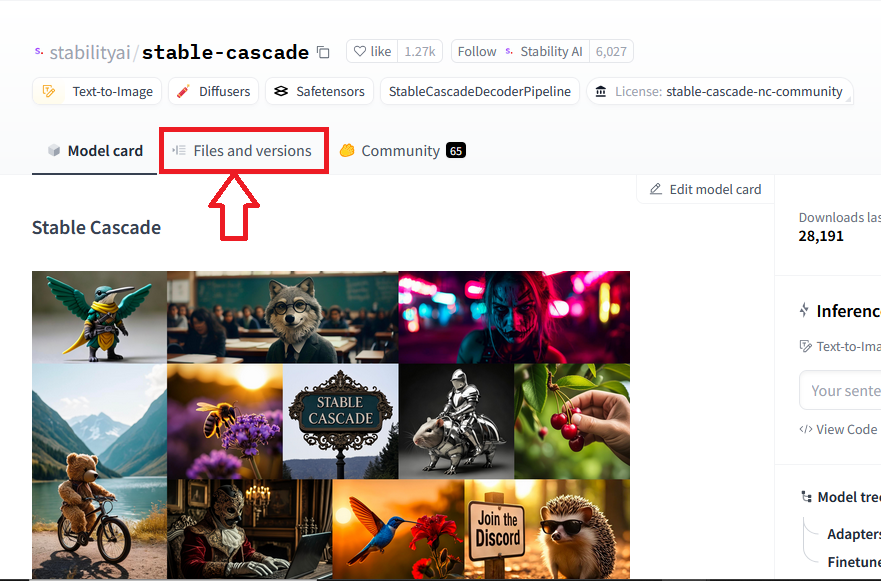
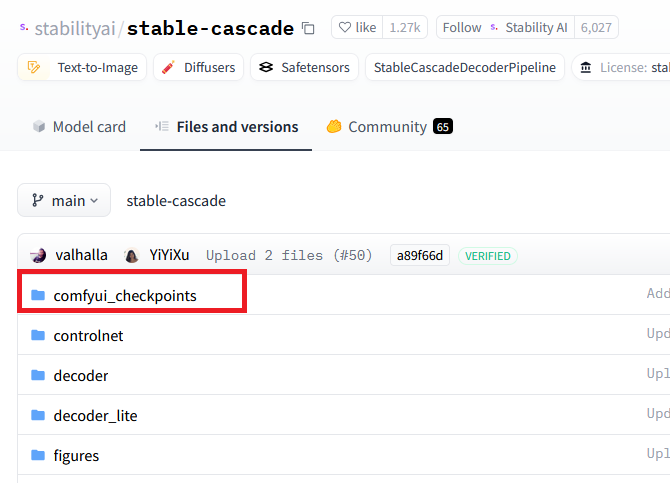
- It will open a stable cascade model’s details page. On this page click on Files and Versions tab as shown below.
- On Files and Versions page, open ComfyUI Checkpoints folder.
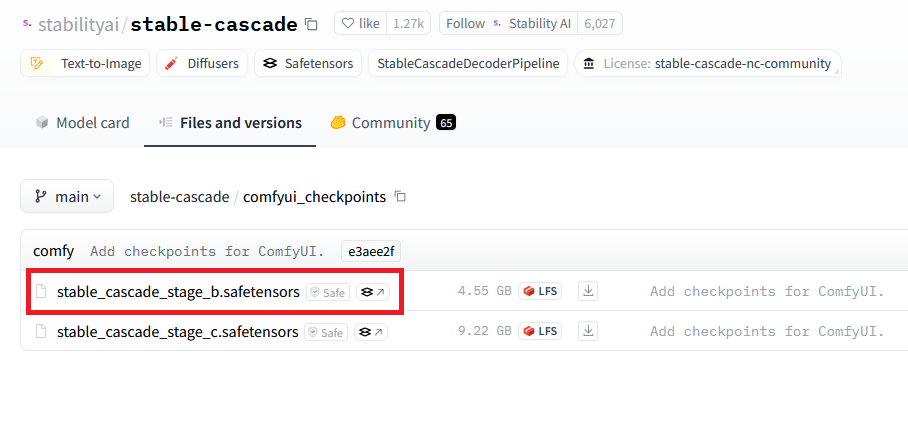
- It will show you list of available ComfyUI checkpoints. Click on the desired one. You can copy the download link from this page and paste in the below wget command to download the model on your ComfyUI VM.
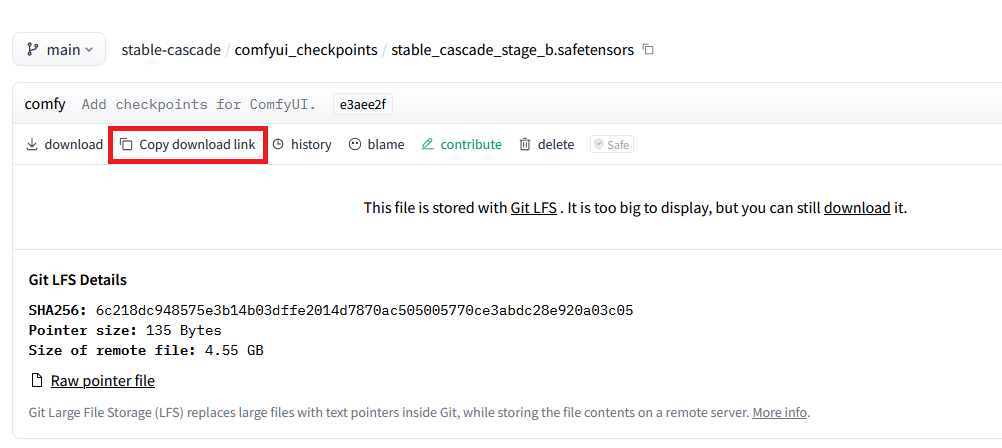
wget https://huggingface.co/stabilityai/stable-cascade/resolve/main/comfyui_checkpoints/stable_cascade_stage_b.safetensors
Replace URL with your models URL.
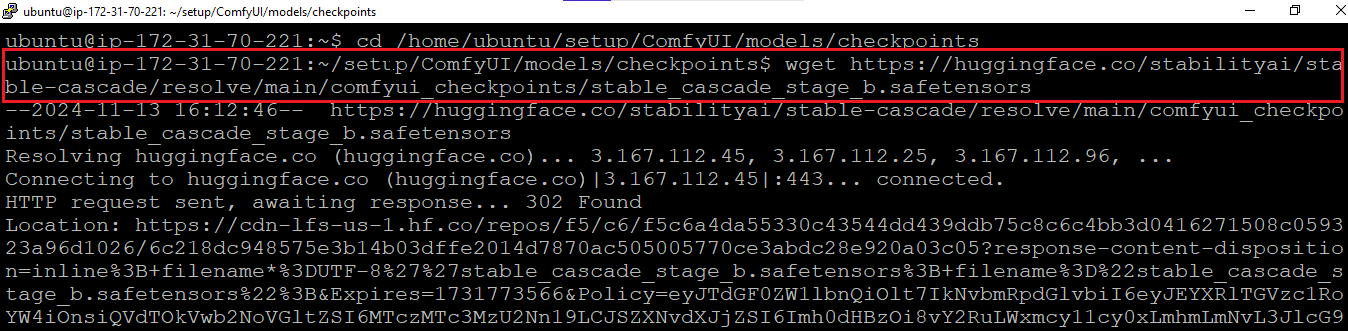

- Now, our model is available in the checkpoints directory of ComfyUI setup Folder.

- Now, refresh the ComfyUI page in your browser. You should be able to select the Stable Cascade checkpoint from the Checkpoints dropdown.
Note: If, for any reason, your model is not available on the ComfyUI page, reboot the VM and check again.
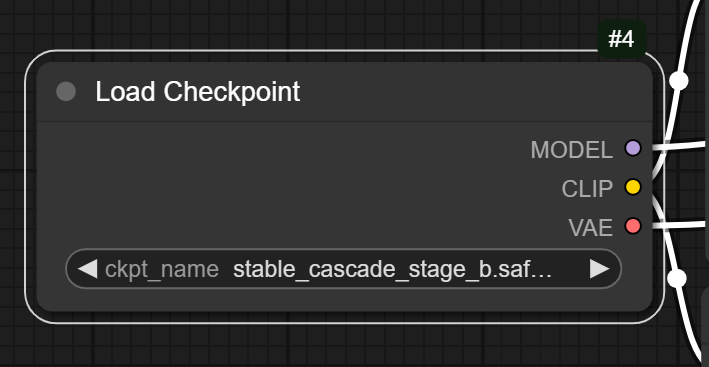
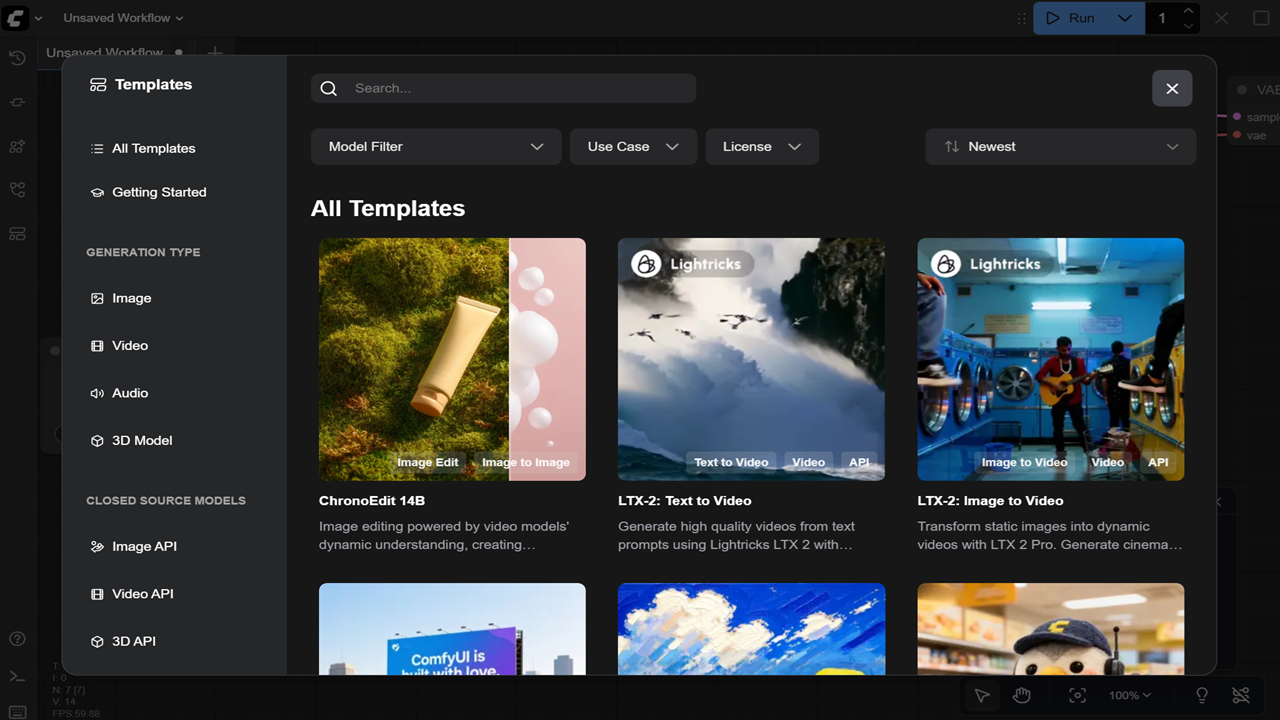
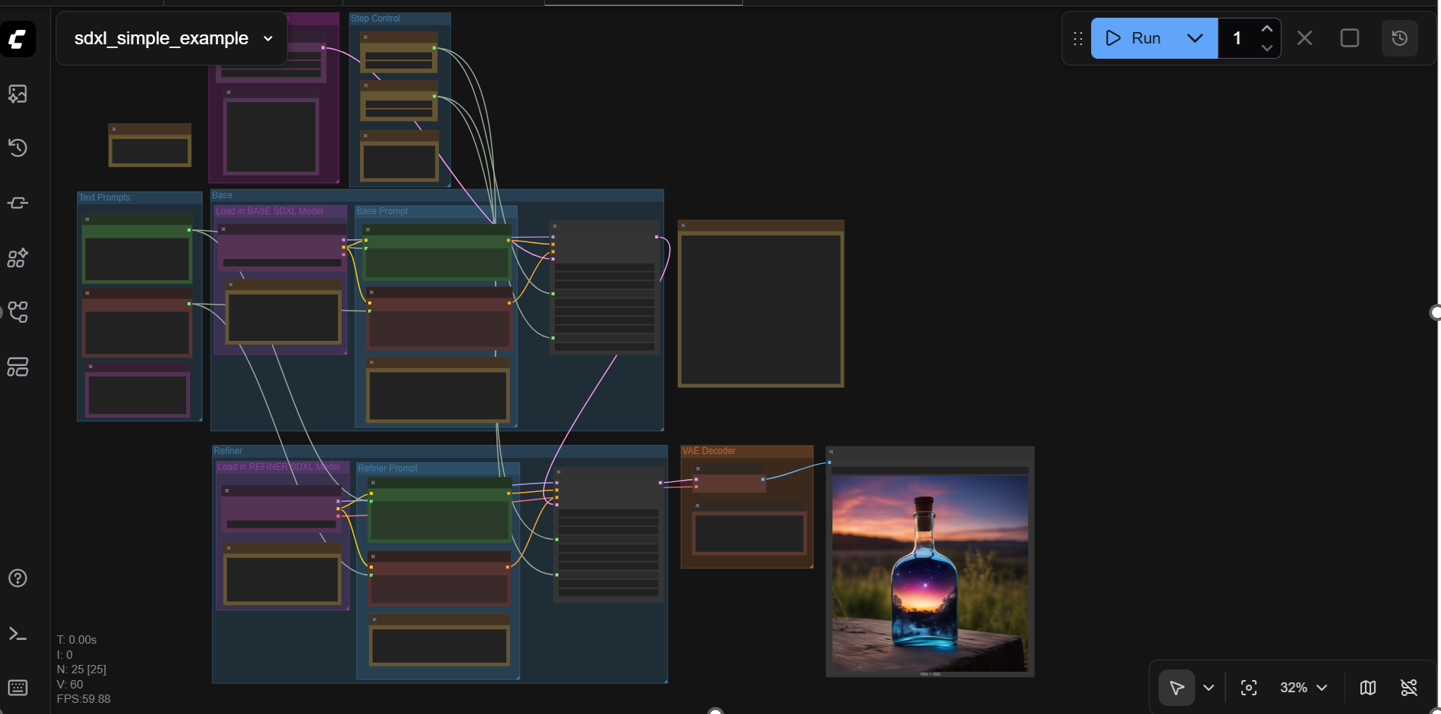
- The default checkpoint model on this VM is stable-diffusion-xl-base-1.0. If you select a workflow from the available templates in the ComfyUI Web UI and it shows an error about the checkpoint model while running it, you can either switch the template to use the model already available on this VM using “Load Checkpoint” dropdown node, or you can download the checkpoint model required by that template.
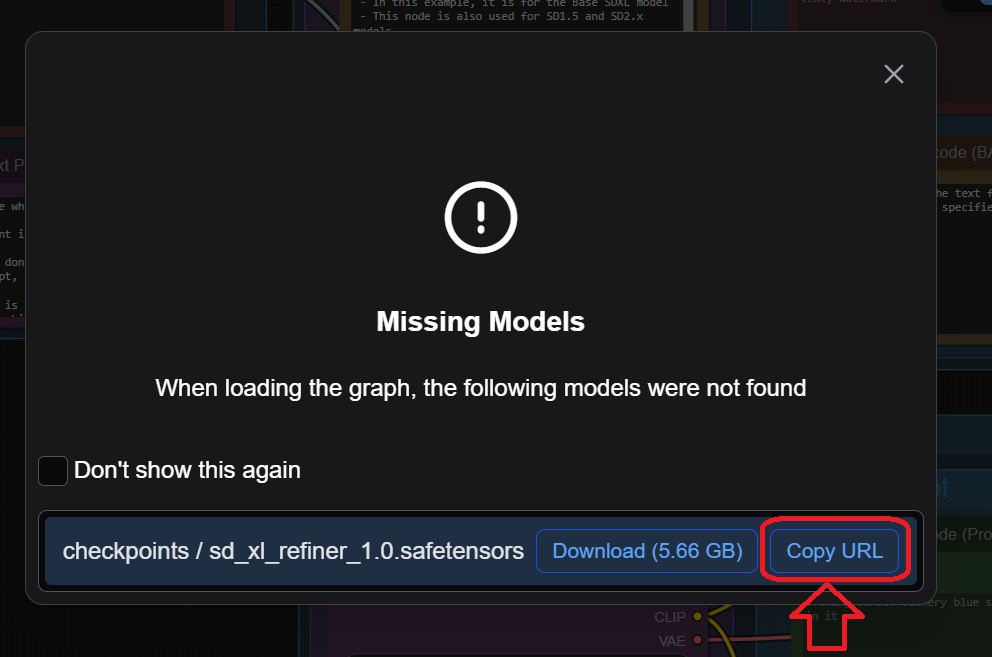
- To download the checkpoint model required by that template, simply copy the checkpoint URL from the error message and repeat step 1-3 from above guide. Once you are in “/home/ubuntu/setup/ComfyUI/models/checkpoints/” directory, paste the copied URL of the model from step 7 above with wget command.
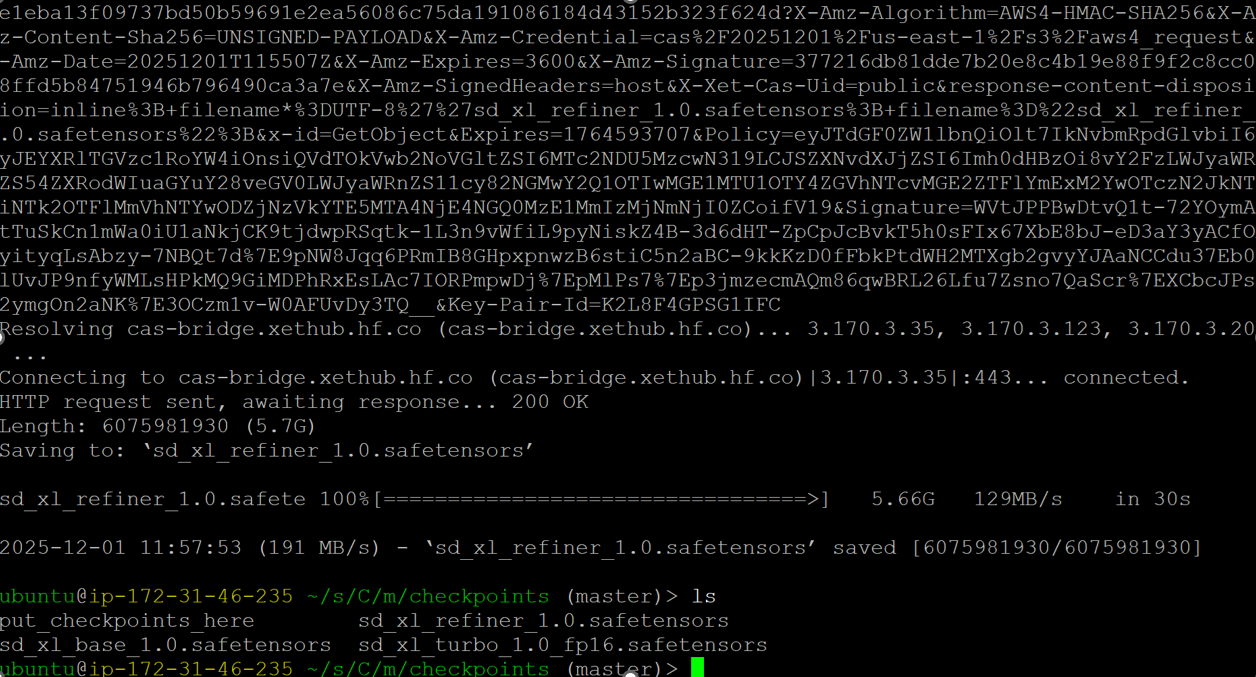
wget https://huggingface.co/stabilityai/stable-diffusion-xl-refiner-1.0/resolve/main/sd_xl_refiner_1.0.safetensors

- Once the model download is successful, you should be able to run your template workflow.
Note: If you are using any model which need authentication on that platform , you need to provide it in your wget command.
e.g
wget --header="Authorization: Bearer YOUR_TOKEN_HERE" "MODEL_URL_HERE"
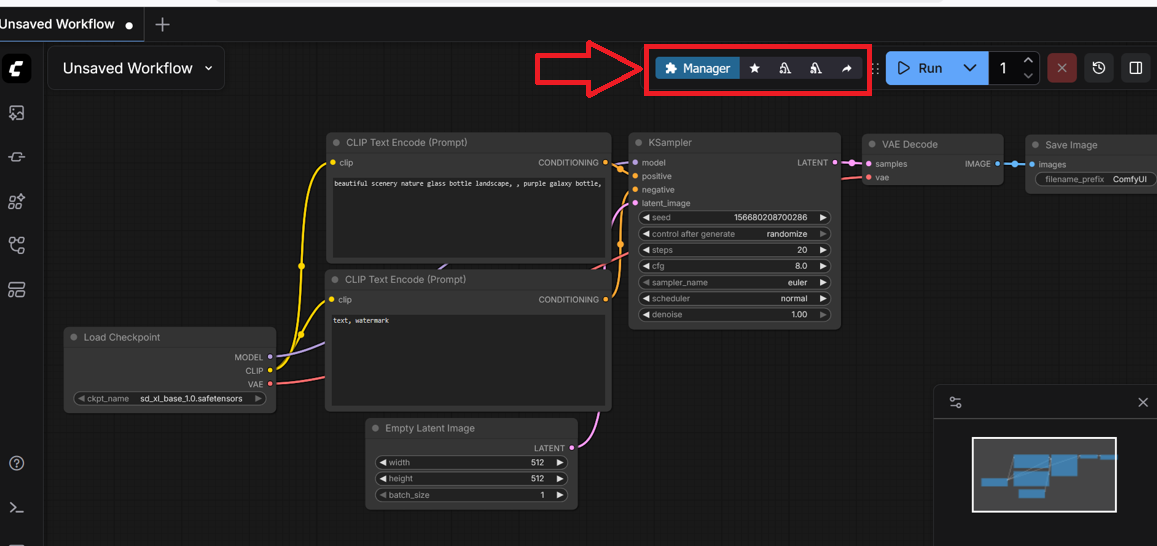
- You can also use ComfyUI Manager extension to install any new model. To do so click on Manager
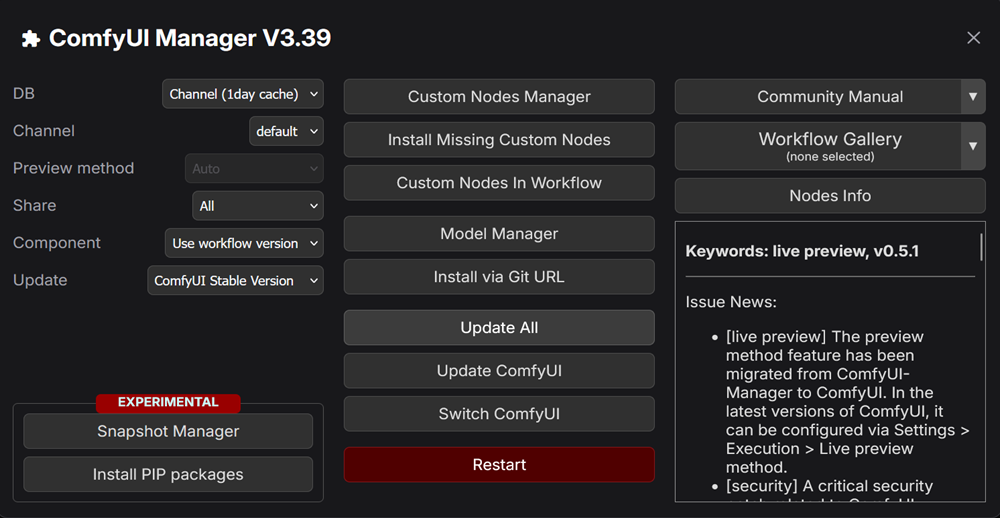
- Select appropriate option from the Comfyui Manager page like install via Git URL/ install missing custom nodes etc.
- Search for the extension and click on Install button. e.g sd_xl_refiner_1 model.
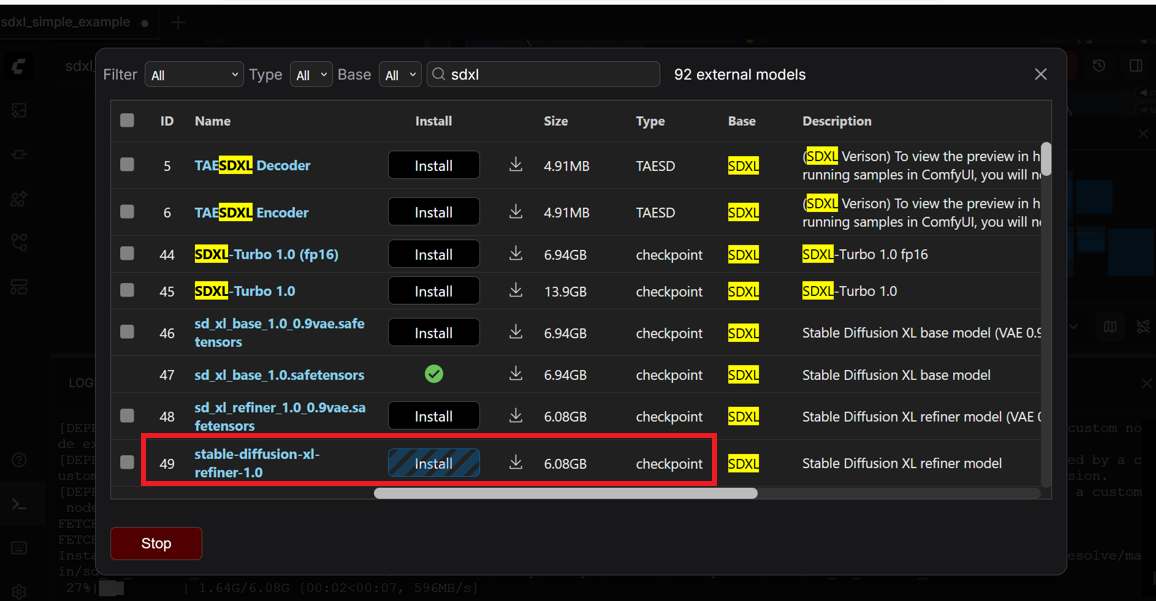
- Once model is installed , Restart your ComfyUI Server by clicking Restart button from manager page.
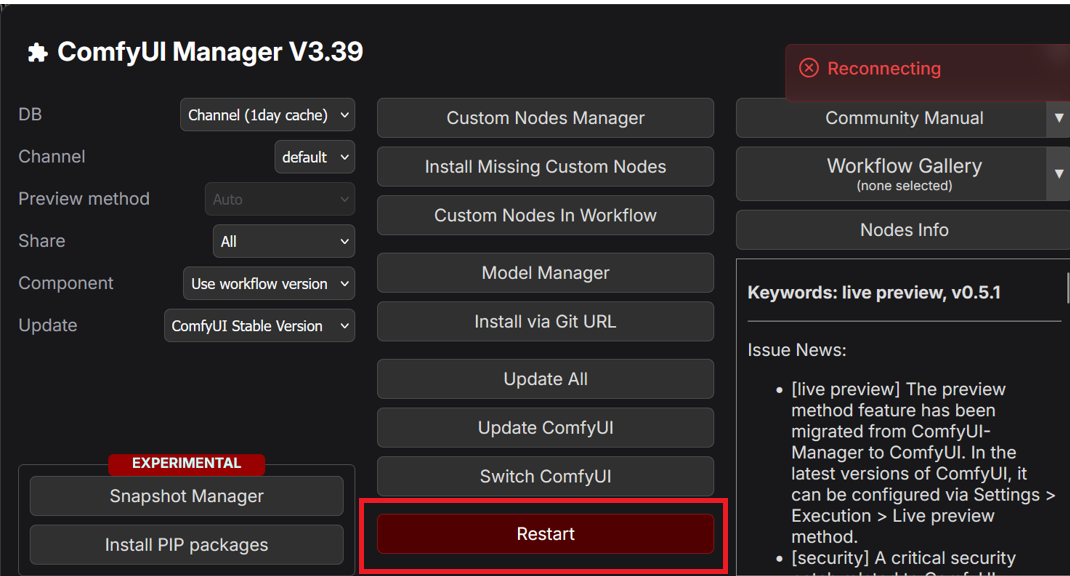
- Once ComfyUI reconnected, you can use newly installed model in your workflow. Simply click on your model node and select it from the dropdown menu.
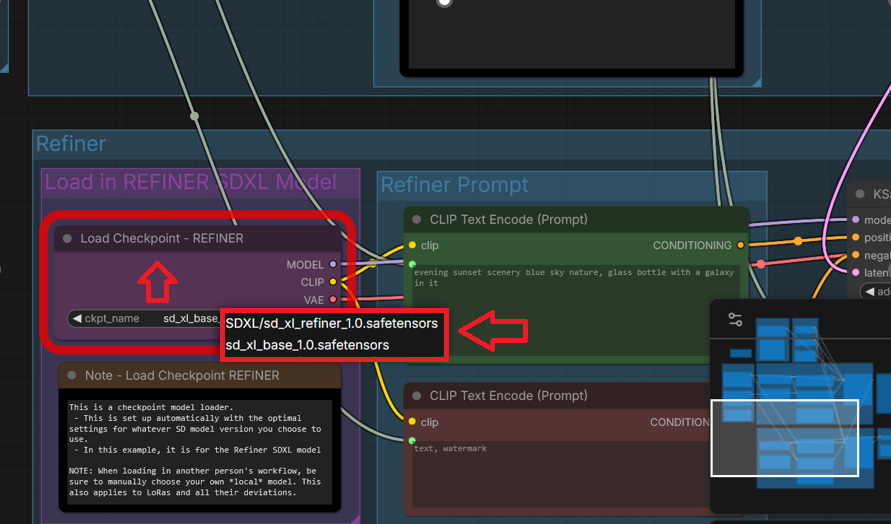
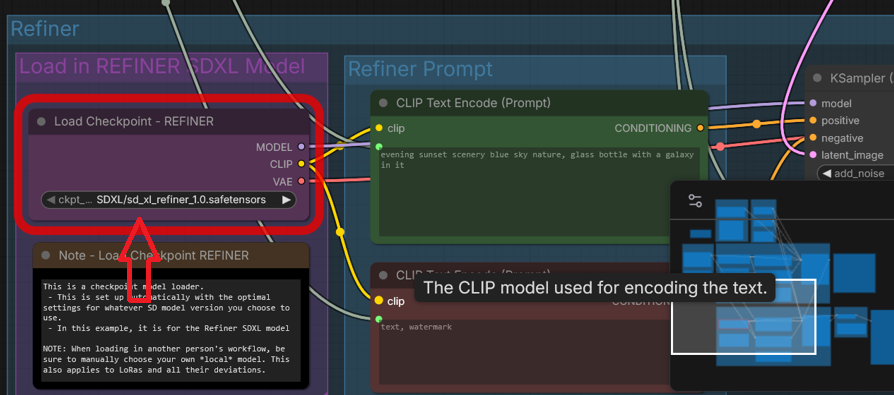
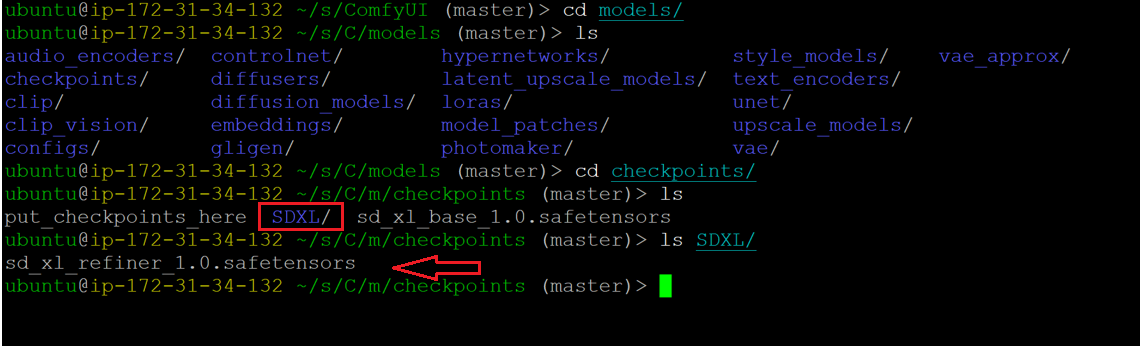
- The default location of model installation on this VM is /home/ubuntu/setup/ComfyUI/models/checkpoints/. Sometimes ComfyUI Manager will create a separate folder inside checkpoints directory for model installation. e.g for sd_xl_refiner_1 model installation , it created SDXL folder as shown in below screenshot.